
A Bitmain Antminer firmware update isn’t just a routine software refresh – it’s how Bitmain patches security vulnerabilities, fixes bugs, and occasionally improves mining efficiency on your hardware. Firmware is the software that runs your Antminer, controlling everything from mining pool connections and hashrate management to temperature monitoring and fan speed. Skipping updates doesn’t just mean missing minor improvements — it can leave your miner genuinely exposed.
Why Firmware Updates Actually Matter
The clearest example of why this matters: Bitmain has previously had to patch firmware after malware was found redirecting a portion of infected miners’ hashrate to an attacker’s mining pool — with the miner’s dashboard still showing normal-looking numbers the whole time. Running outdated firmware means running without the security patches Bitmain has released specifically to close vulnerabilities like this. If you’re running current hardware like the Antminer S21 Pro, staying current on firmware is part of basic security hygiene, not an optional extra.
Before You Start
- Antminers connect via Ethernet only — there’s no Wi-Fi support on any model, so you’ll need a direct cable connection from your router to the miner
- Find your miner’s IP address using Bitmain’s IPReporter tool (downloadable from Bitmain’s support site) — run it as Administrator, then hold the IP Report button on the miner until it beeps to reveal the address. Alternatively, check your router’s connected-devices/DHCP client list
- Log into the miner’s web dashboard using that IP address in your browser. Default credentials are username
root, passwordroot– change this after your first login if you haven’t already, since default credentials left unchanged are a real security risk on their own - Back up your pool and configuration settings before updating, in case anything needs to be re-entered afterward
Downloading Firmware Safely
This is the step where miners most often run into trouble. Only download firmware directly from Bitmain’s official support site — never from third-party forums, messaging groups, or file-sharing links, even ones claiming to offer a “better” or “unlocked” version. Firmware-embedded malware distributed through unofficial channels is a documented, real risk in this space.
- Go to Bitmain’s official firmware and upgrade instructions
- Select your exact miner model — firmware is model-specific, and installing the wrong model’s firmware can damage the miner
- Download the file to your computer rather than opening it directly in the browser
- Verify the file’s checksum (MD5 or SHA256, listed on Bitmain’s download page) against the downloaded file before proceeding, to confirm it hasn’t been tampered with or corrupted
Installing the Update
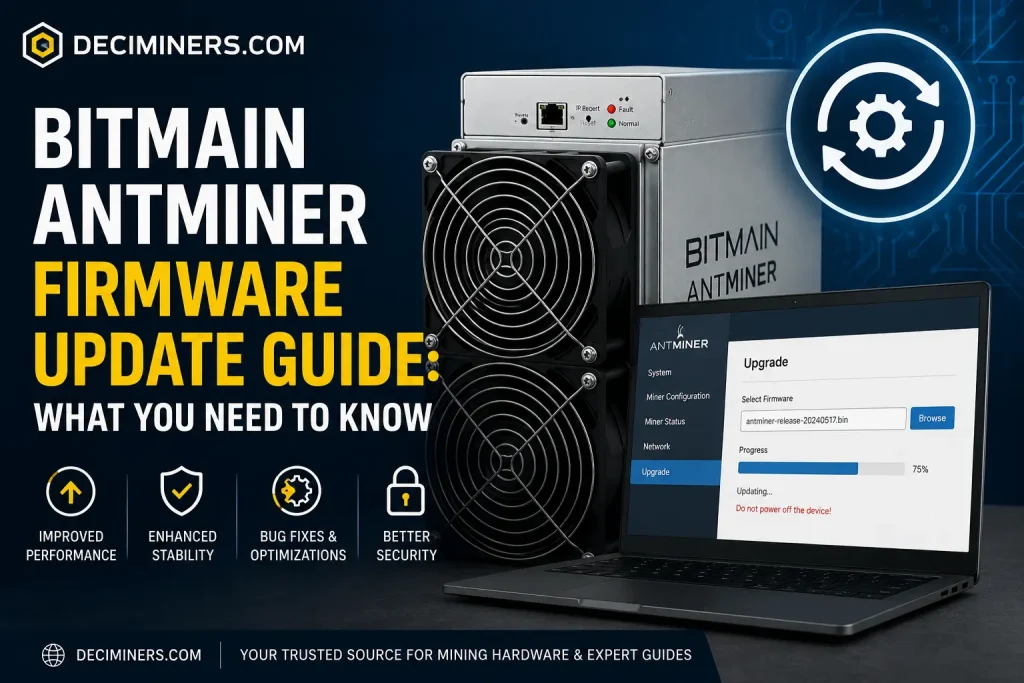
- In your miner’s web dashboard, go to System → Upgrade
- Click Browse, select the firmware file you downloaded, then click Flash
- Do not power off the miner or interrupt the process for any reason. The flash typically takes 5–20 minutes depending on the model — interrupting it partway through is the single most common cause of a “bricked” miner
- Once complete, the dashboard should display “System Upgrade Success.” Keep the miner powered on and running for a further 15–20 minutes afterward before making any other changes
If Your Firmware Is Very Outdated
If your Antminer has been running very old firmware for years, you may need to install an intermediate “transition” firmware first before jumping to the current version — trying to skip directly to the latest release from a very old base can cause the update to fail. Check the release notes on Bitmain’s download page for your specific model to see if this applies.
If Something Goes Wrong
If the upgrade fails repeatedly, or your dashboard starts showing “??” where hashboard status should appear, stop trying to re-flash it. At that point, the safest move is to open a support ticket rather than keep attempting reflashes, which can compound the problem.
A Note on Alternative Firmware
Some miners run alternative firmware (like Braiins OS+, VNish, or LuxOS) instead of Bitmain’s stock software, mainly for per-chip efficiency tuning. This is a legitimate practice among experienced miners, but it’s a different process from a standard Bitmain update, and it can affect your ability to get official Bitmain support afterward — worth researching thoroughly before going that route, and not something to attempt on your first firmware update.
FAQ
How often does Bitmain release firmware updates?
There’s no fixed schedule – Bitmain releases updates as needed for security patches, bug fixes, or performance improvements, so it’s worth checking your specific model’s support page periodically rather than assuming updates are automatic.
Will updating firmware void my warranty?
Standard firmware updates from Bitmain’s official site generally don’t void your warranty, but physically disassembling the miner does. Installing third-party/alternative firmware can also affect your eligibility for official Bitmain support – check your specific warranty terms if you’re unsure.
Can I update firmware over Wi-Fi?
No – Antminers require a wired Ethernet connection for both setup and firmware updates. There’s no Wi-Fi capability on any model.
What happens if the power goes out during a firmware update?
This is one of the most common causes of a bricked miner. Make sure you’re on stable power before starting, and avoid updating firmware during storms or known power instability in your area.